HourLife for Mac 1.0: your whole record, with a keyboard
HourLife for Mac 1.0 is a native Mac app for the desk half of the week: every module in a sidebar, Today five ways, a Command Bar and a key for nearly everything, a panel at the edge of the screen, and the same record as your iPhone through your own iCloud.
-
 HourLife
- Release
- v1.0
- The HourLife team
- 11 min read
HourLife for Mac 1.0 is available on the Mac App Store. It needs macOS 26 or later, and if you have HourLife Premium on your iPhone, it is already unlocked on your Mac.
What shipped
- A native Mac app, written for the Mac rather than stretched from the iPhone: a sidebar, menus, more than one window, and a key for nearly everything.
- Every module has a page, in a sidebar you arrange yourself, with your favorites at the top.
- Today, five ways: Board, Now, Sundial, Ledger and Desk.
- The Command Bar (⌘K) finds any page, action or item by name, and sends anything else to Brain Dump.
- A side panel at the edge of the screen, over whatever app you are in, and HourLife in the menu bar, with your focus session and Quick Timers.
- The same record as your iPhone. With sync on, the Mac uses the same data through your own iCloud account. There is no account to make.
- Health records never go through iCloud. They come from your iPhone over your own Wi-Fi once the two are paired.
- One Premium purchase unlocks HourLife on your iPhone, iPad and Mac.
The desk half of the week
The iPhone is where a day gets caught as it happens: the habit ticked off in the kitchen, the task jotted down on a walk, the mood logged before bed. It is good at that, and it is the wrong tool for the other half. Planning the week, reading the last one back, writing more than a line in the journal, sorting forty captures from a busy Tuesday — that has always wanted a bigger screen and a keyboard.
HourLife for Mac is for that half, and it is not the iPhone app in a window. We didn’t port the iPhone screens. Every page was drawn again for a pointer, a keyboard and a window you can make as large as you like.
What the two apps share is underneath: one data model, one rule for how a goal’s progress rolls up, one idea of when your day starts and which day your week begins on. A weekly review finished on the Mac is the same record as one finished on the iPhone, and the iPhone reads it back as its own.
So the shape is simple. Catch the day on the phone, plan the week at the desk, and never copy anything from one to the other.
A page for every module
The sidebar holds every module, grouped the way the iPhone’s Library groups them: Capture & Process, Learn & Grow, Plan & Do, Life Design, Body & Mind, and People & World. Brain, Journal, Tasks, Habits, Goals, Focus, Calendar, People, Areas, Health and the rest each have a page of their own, laid out for a window rather than a phone.
You decide what is in it:
- Hide a module in Settings › Sidebar and it leaves the sidebar and the Go menu. Its records stay, and keep syncing.
- Right-click a page and choose Add to Favorites to pin it under Today. ⌘1–⌘9 count your favorites first, so the pages you open most are one key away.
- Small counts sit beside Today, Brain Dump and Waiting: tasks due, captures to sort and follow-ups due. You can turn them off.
Press ⌥⌘N for another window. Each window keeps its own page, so on a large display this week’s calendar can sit beside the journal.
Today, five ways
Today on the iPhone is one page that changes with the hour. On the Mac there is room to look at the same day in different ways, the way a Finder window has views. Each one draws the same day:
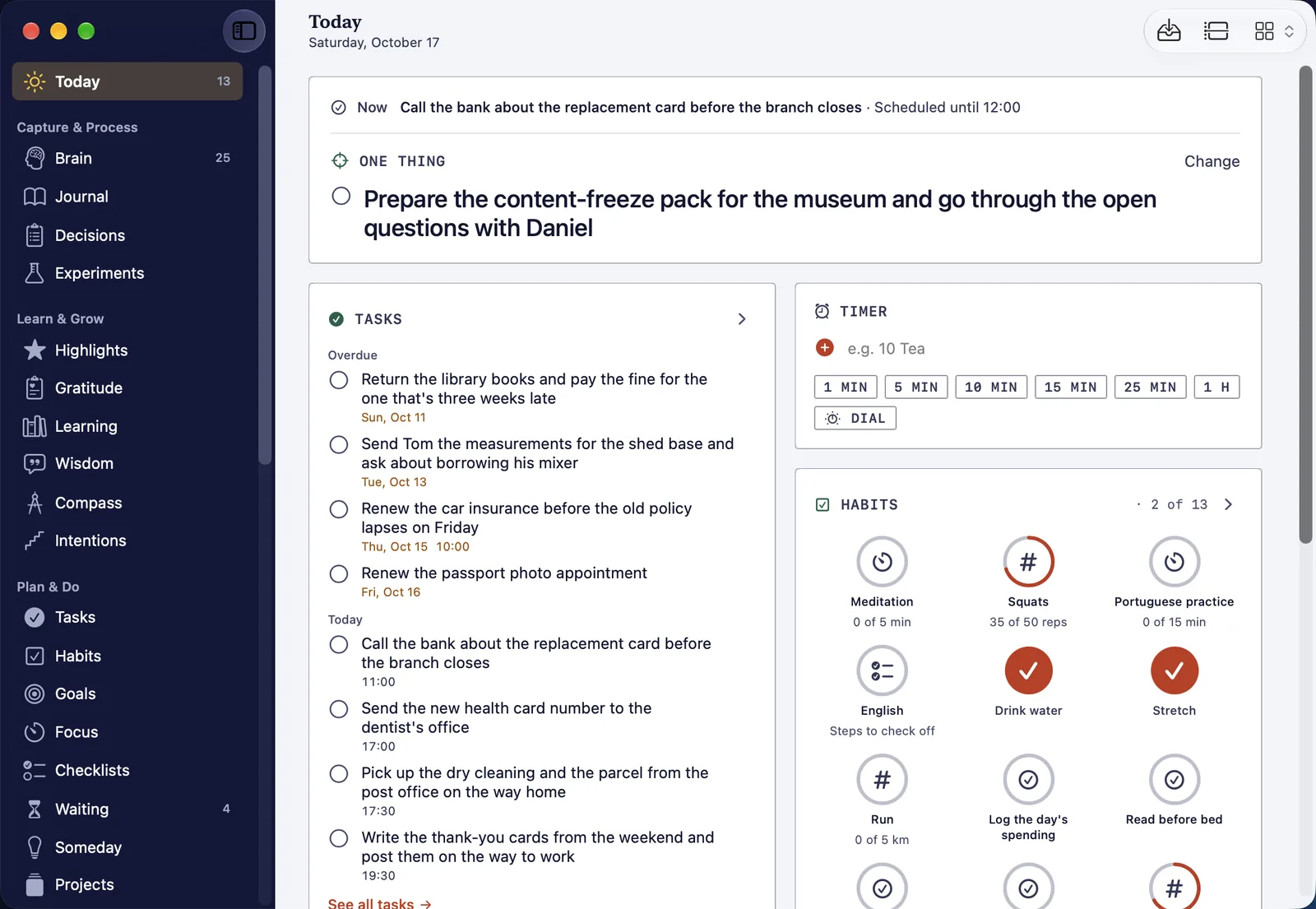
- Board (⌥⌘1) shows the widgets you pick in Settings › Today, in the order you choose, in as many columns as the window has room for.
- Now (⌥⌘2) shows one thing, big: what this hour is for.
- Sundial (⌥⌘3) draws the day as a clock face.
- Ledger (⌥⌘4) draws the day as hour lines, written in.
- Desk (⌥⌘5) lays the day out as papers on a desk.
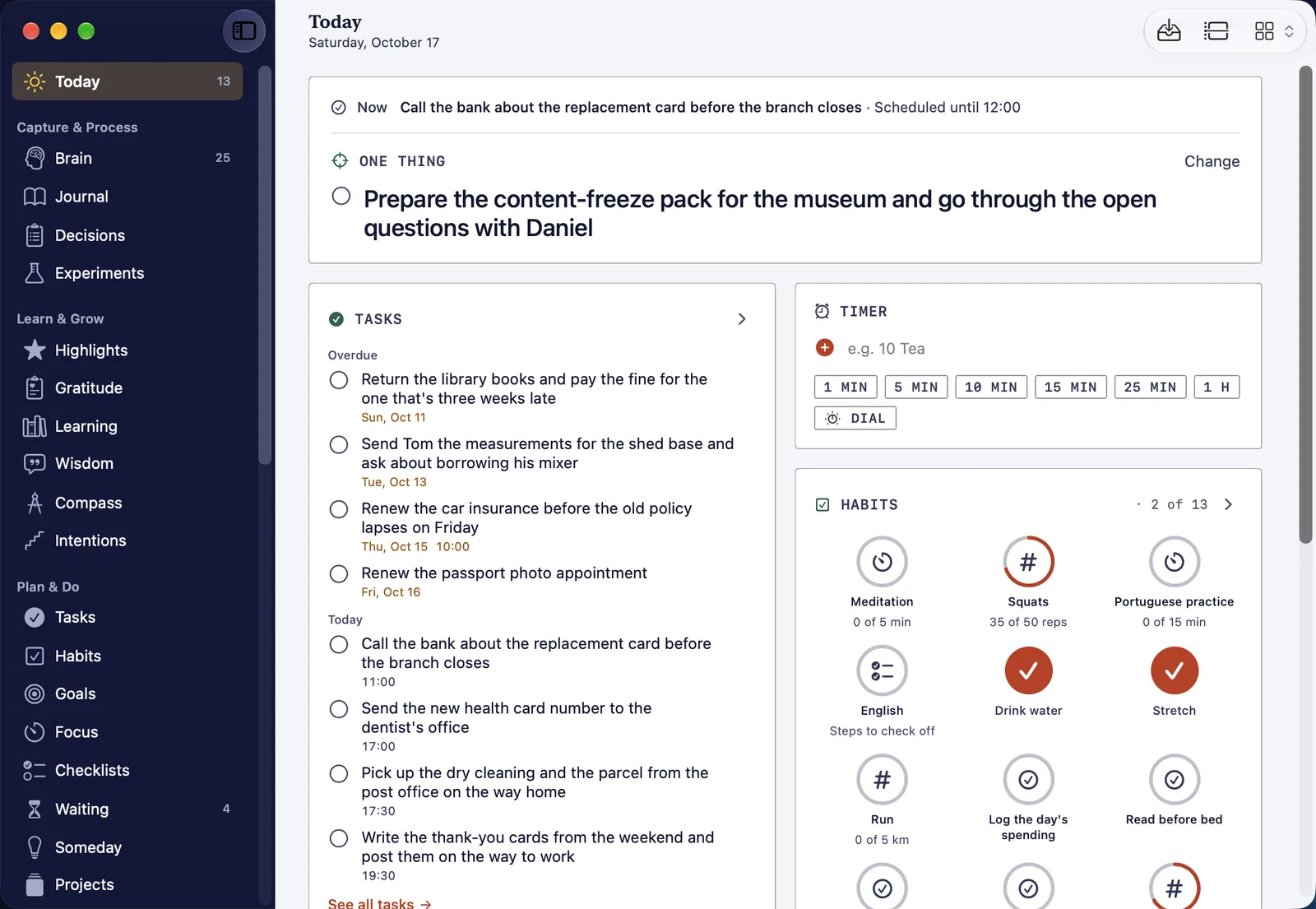
The Board is the view in the picture above. It holds the task that holds now, your One Thing, what is overdue and what is due today, a timer, and today’s habits as rings you click to log. The Mac remembers the view you last used.
A week you can see
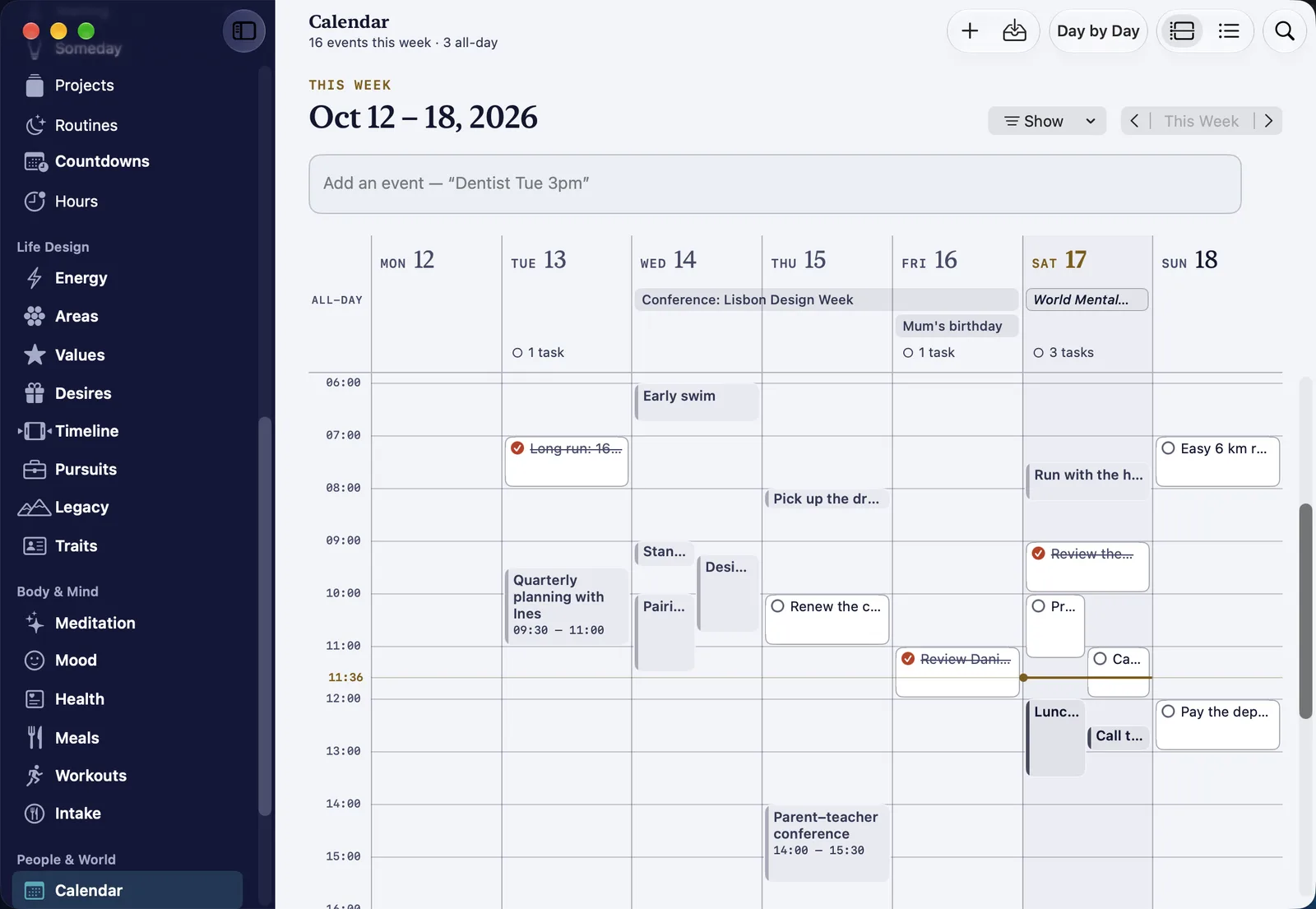
This is the screen the Mac was made for. Calendar lays the week out hour by hour, with your events and the tasks you gave a time on one grid. All-day events and each day’s untimed tasks run along the top, and a line crosses today at the current minute. Type an event the way you would say it — “Dentist Tue 3pm” — and it lands on Tuesday at three.
Tasks gets the same width: what is overdue and what is due today, the week ahead day by day, and the projects your tasks belong to, side by side instead of a tap apart. Day by Day, which came to the iPhone in 1.3, is one click from the calendar. It is for reading a week back one day at a time before you plan the next one.
Writing at a keyboard
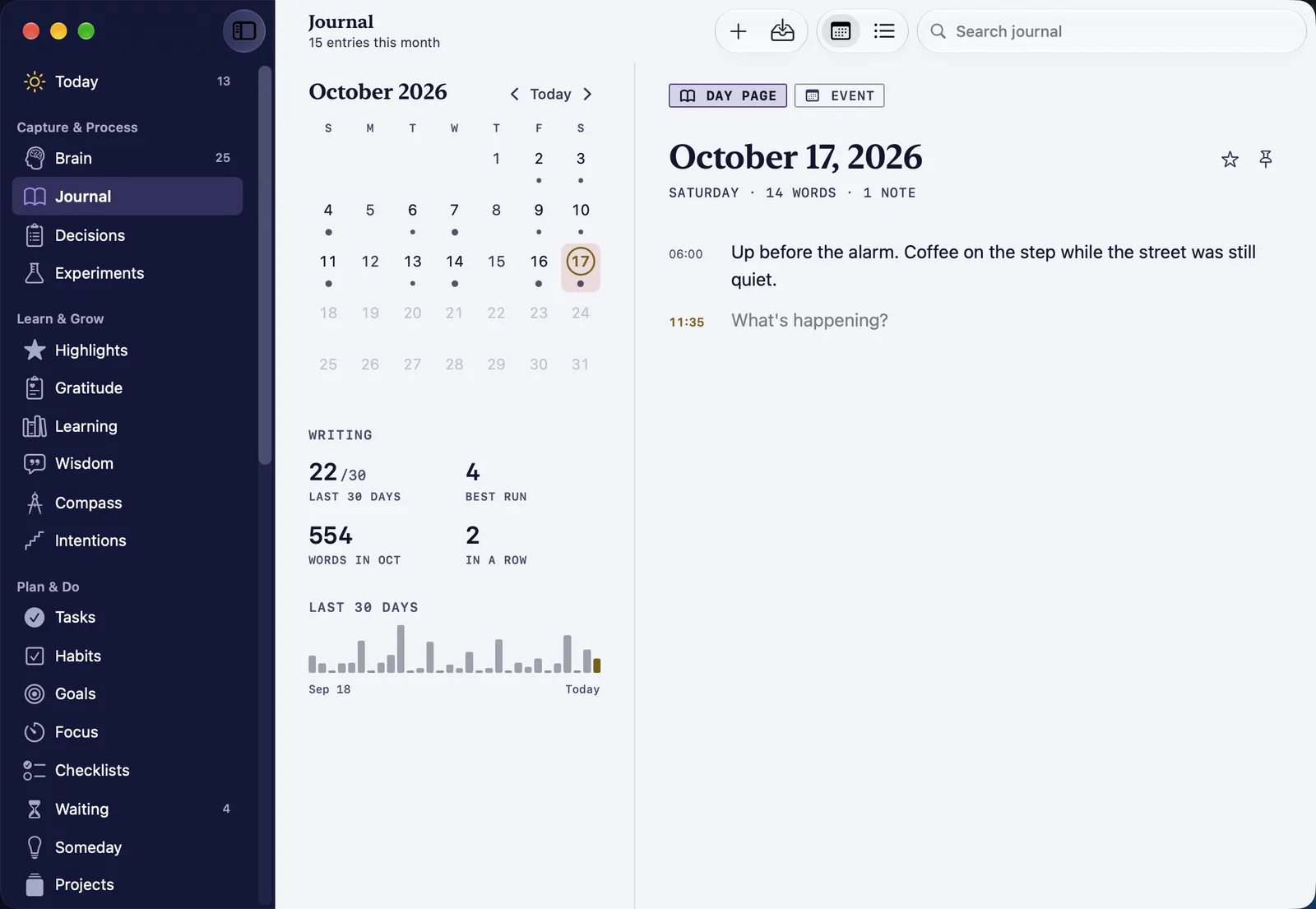
The Journal gains the most from a keyboard. Each day is a page, with the month beside it and a quiet record of how often you have written. The entries worth reading in ten years are rarely the ones typed with a thumb.
In Settings › General › Writing you choose what Return does. Either ⌘↩ adds the entry and ↩ starts a new line, or ↩ adds it and ⇧↩ starts a new line. The setting covers every field that holds more than a line: journal notes, captures, Brain Dump and gratitude. ⌘↩ adds from any of them either way.
Made for a keyboard
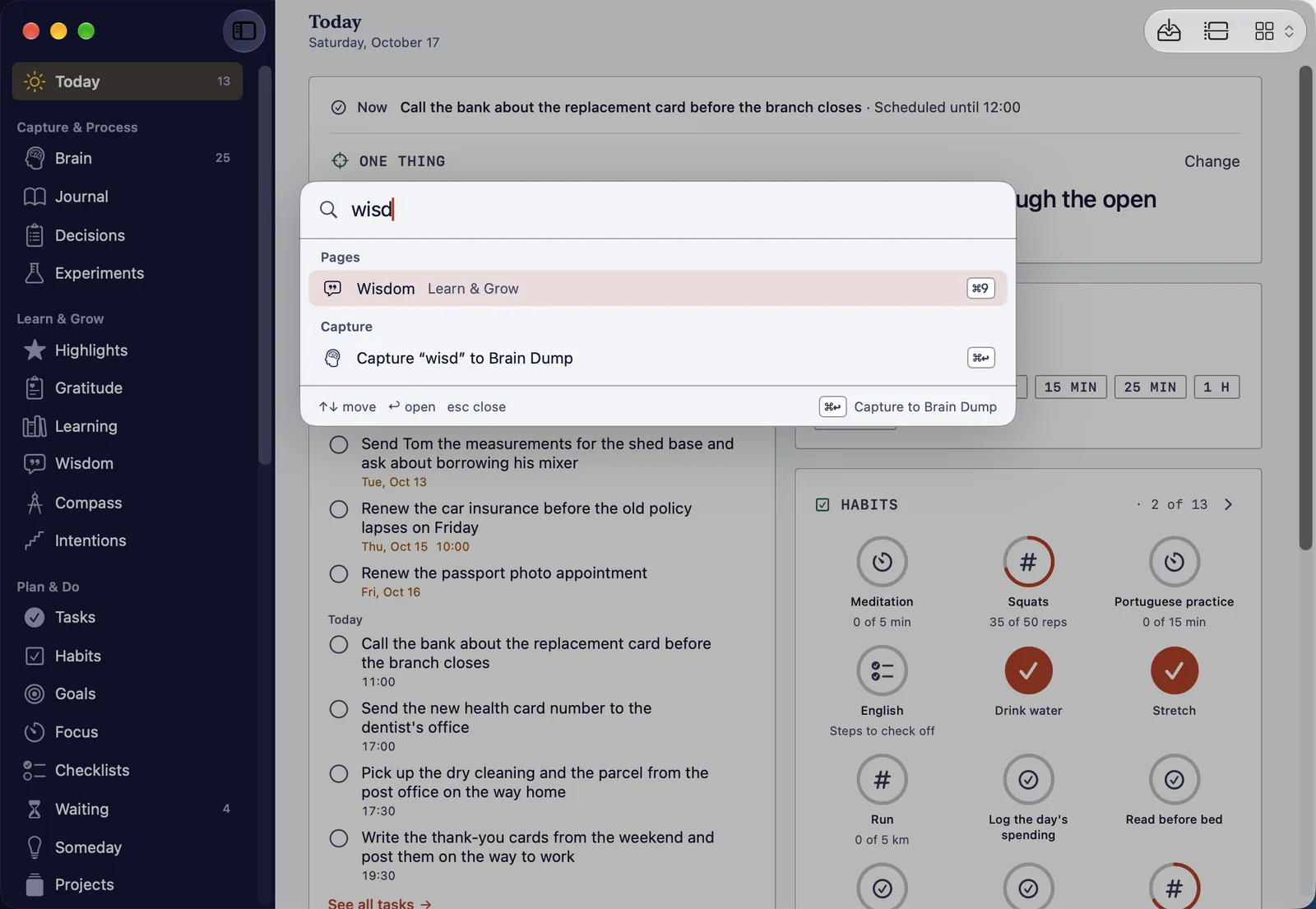
Press ⌘K and type a few letters of a page, an action or an item. If what you want isn’t there yet, press ⌘↩ instead of ↩ and what you typed goes to Brain Dump, so a thought never waits for you to decide where it lives.
The Command Bar knows more than pages. Type “pair” to pair your iPhone, “trash” to open Recently Deleted, or the name of a Settings pane to open Settings there.
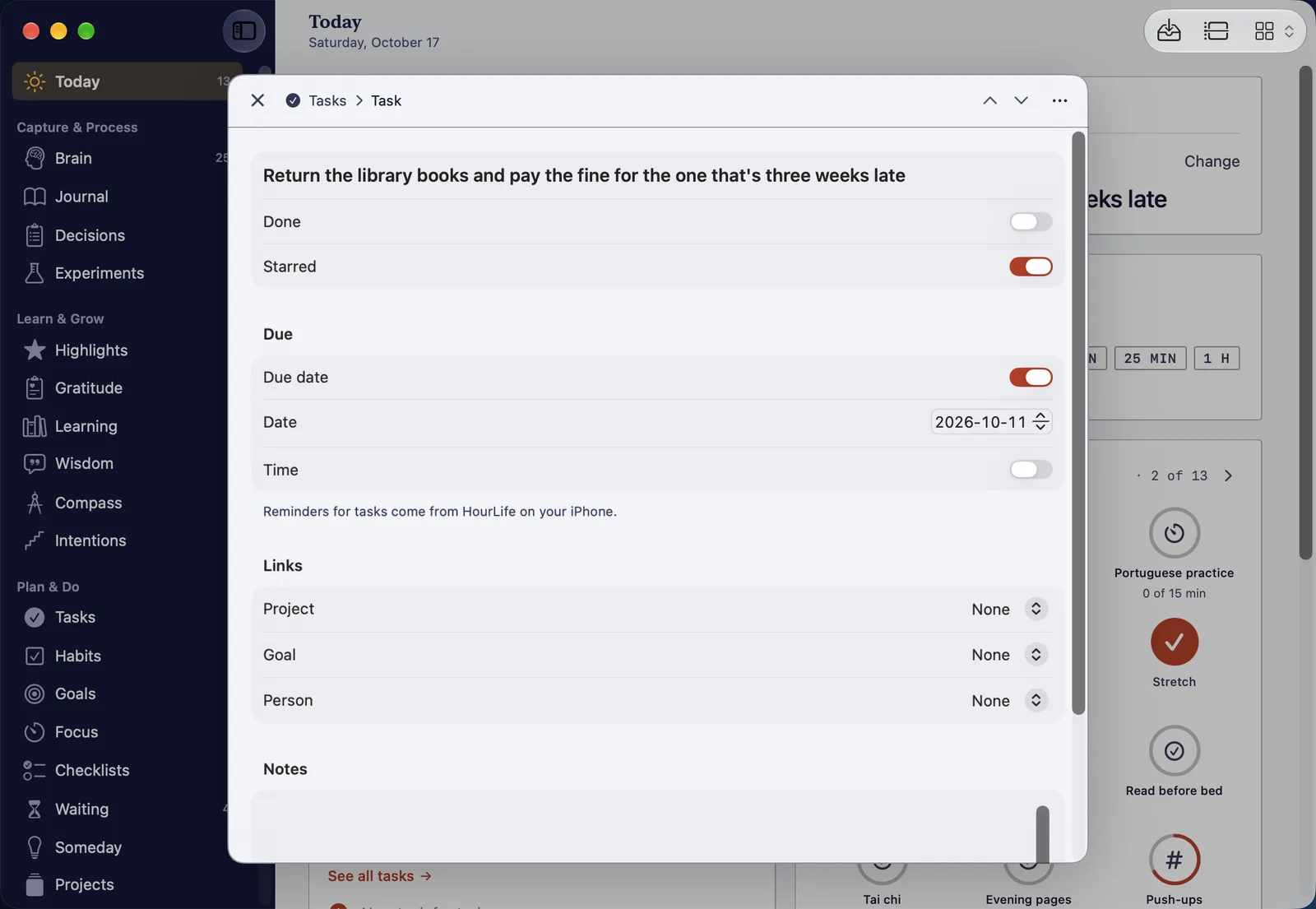
Open a task and it floats over its page with every field at hand: Done and Starred, the due date, and links to a project, a goal and a person. ⌘↑ and ⌘↓ step to the item above or below without closing it, so you can sort a list in one pass. The keys worth learning first:
- ⌘K the Command Bar
- ⇧⌘K Quick Capture, from any page
- ⌘N add something new to the page you are on
- ⌘1–⌘9 go to your favorites, then the first pages in the sidebar
- ⌥⌘1–⌥⌘5 switch Today’s view
- ⌘F search the page
- ⌥⌘N open another window
- ⌃⌥⌘T start a new timer
- ⌘, open Settings
Focus, and the smaller timers
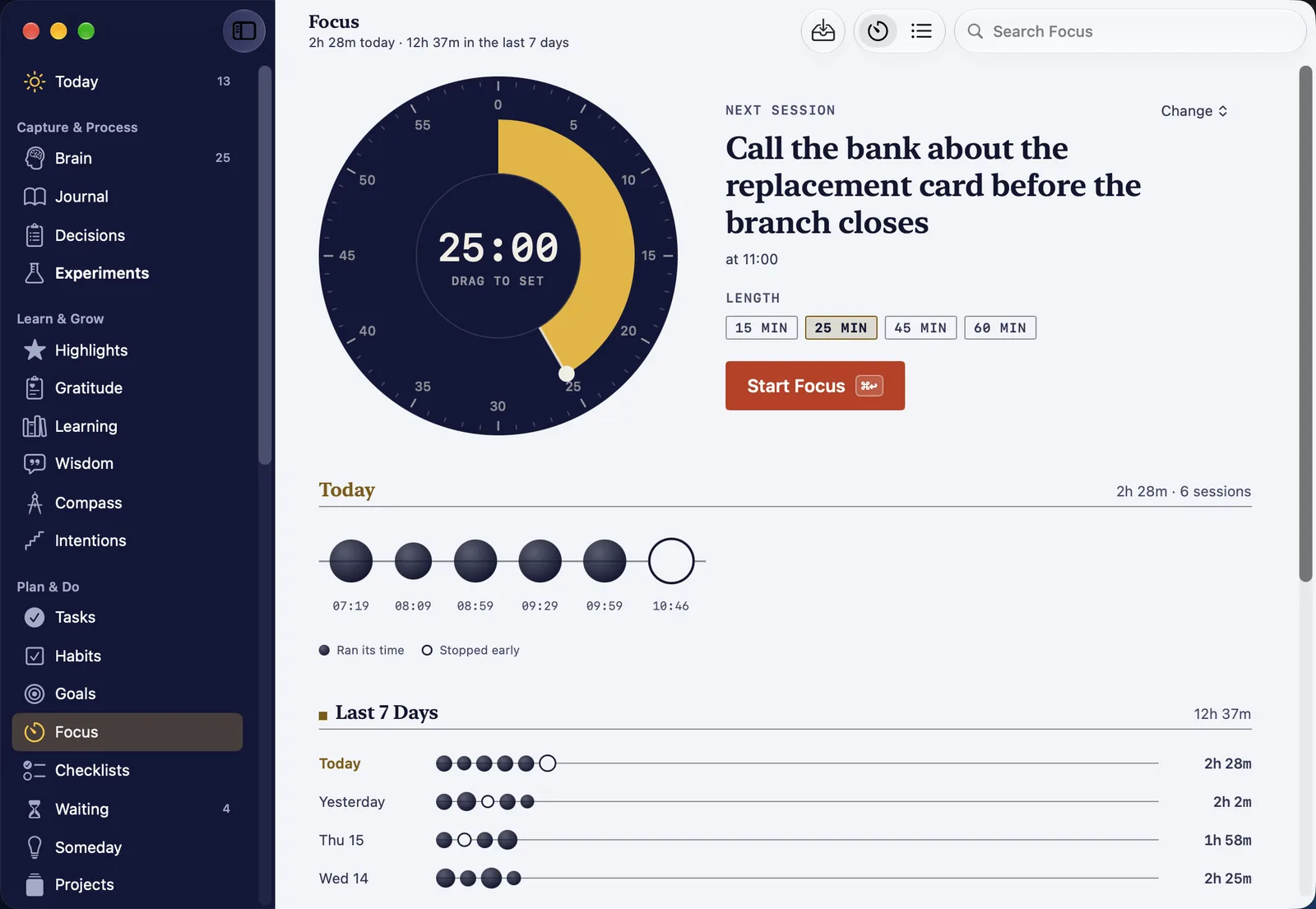
Focus is for the work you want to count. Drag the dial to set a session, start it on your next task, and see every session the week has held, whether you timed it on the Mac or on your iPhone.
Most timers aren’t that. They are for the pasta, the parking meter and the dog’s dinner, and that is what Quick Timer is for. Type “10 tea” and press ↩, or click a length. A label you have used comes back as a chip, like “Feed dog · 10m”, that starts it again with one click. Running timers are listed underneath, each with +5 and ×.
The timer box is in four places: on Today’s Board, in the menu bar, in the New Timer window (⌃⌥⌘T) and in the side panel. When a timer is up it rings in a small window above every app, without taking the keyboard from what you are doing. ↩ is Done, and ⌘S snoozes it.
Quick Timers sync with your iPhone. One started on the phone shows on the Mac with the time it ends, and the other way round.
At the edge of the screen
Push the pointer against the edge of the screen and a side panel opens over whatever app you are in. At the top are the hour and how far your waking day has come. Below them are cards for what is worth doing without opening HourLife:
- Capture a thought to Brain Dump, and turn one of today’s captures into a task for today.
- Write a quick note in today’s journal.
- Start a Quick Timer or a focus session.
- Tick off today’s tasks, or add one.
- Log a habit.
- Read today’s wisdom.
In Settings › Side Panel you choose the edge it opens from, which cards it shows and in what order, whether it stays open, and whether finished tasks and habits stay in view.
Turn on Keep HourLife in the menu bar in Settings › General and HourLife keeps running after you close the last window. It leaves the Dock, the side panel stays at the edge of the screen, and the menu bar item opens the window again. Turn on Open at login too and it is there before you think to open it.
Your look, on this Mac
The Mac comes in HourLife’s own colours: a night-blue sidebar, cool paper pages, one coral for anything you can act on, and the gold of the sun for today and now.
If you set your iPhone up in a style you love, the same styles and colour sets are in Settings › Appearance, along with Light, Dark or System. Styles are free, and the Premium colour sets unlock with Premium. Your choice stays on this Mac, so the desk can look different from the phone.
One record, two ways across
Most of HourLife syncs through your private iCloud, the same way it already reaches your iPad. It runs through your own iCloud account, there is no HourLife account to make, and we never receive your data. If the Mac opens empty, HourLife on your iPhone isn’t syncing yet. Turn on iCloud sync there and your days arrive.
Health is the exception. Symptoms, medications you take as needed, sobriety and the values your habits read from Apple Health never go through iCloud. To see them on the Mac, pair it with your iPhone once:
- On the Mac, open Settings › iPhone and choose Pair iPhone.
- On the iPhone, open Settings › Sync with Mac, tap Pair with a Mac and choose your Mac from the list.
- Both show the same 6-digit code. Check that they match, and confirm.
After that, the two sync whenever HourLife is open on both and they are on the same Wi-Fi. They talk directly over your local network, encrypted, with no server in between.
The Mac doesn’t read Apple Health itself. What comes from Apple Health can be read on the Mac and changed only on the iPhone. If you would rather keep those habits off the Mac entirely, turn off Show Apple Health habits in Settings › Modules. They keep their streaks either way.
What stays on the iPhone
The Mac is a second desk, not a second phone, and a few things stay where they started:
- Reminders. The Mac sends none, so a reminder never rings on two devices at once. Reminders for tasks, habits, follow-ups and reviews come from your iPhone. Quick Timers are the exception, because a timer has to ring where you started it.
- Habit schedules and reminders, and journal entries written from a template, are edited on the iPhone.
- Secure Box stays on the iPhone. A Vault item marked Sensitive syncs like the rest of the Vault, so keep secrets in Secure Box.
- Scanned papers stay on the iPhone that scanned them. The Mac tells you they are there.
Delete something by mistake on the Mac and it waits in Recently Deleted for 30 days. Open it from the Go menu, or type “trash” into the Command Bar.
Premium
HourLife Premium is monthly, yearly or lifetime, and one purchase covers iPhone, iPad and Mac. The modules that are free on the iPhone are free on the Mac, and your own history is never behind the paywall on either. If you already have Premium, open Settings › Premium on the Mac and choose Restore Purchases.
Getting started
- Install HourLife from the Mac App Store. It needs macOS 26 or later.
- Turn on iCloud sync in HourLife on your iPhone, if it isn’t on already. Your record arrives on the Mac.
- To bring your health records across, pair the two in Settings › iPhone.
- Press ⌘K and type the name of a page.
What we left out of 1.0
- No reminders sent from the Mac
- No Apple Health on the Mac
- No account, no login, no password, just as on the iPhone
We won’t publish a roadmap for the Mac, for the same reason we don’t publish one for the iPhone. What we will do next is watch which pages people keep open on their desks, and make those better.
Catch the day on the phone. Plan the week at the desk.
More from HourLife
HourLife 1.4: more of your days in iCloud, your health kept off it
HourLife 1.4 syncs mood, meditation, energy, workouts, intake and experiments through iCloud, keeps health records off it, and adds Quick Timer, for the pasta and the parking meter.
HourLife
Release
v1.4
3 min read
HourLife 1.3: read the week back, one day at a time
HourLife 1.3 adds Day by day: a week or a month laid out one day at a time, with what each day held. It also sits inside the weekly review, so you can read the week back before you score it.
HourLife
Release
v1.3
2 min read