HourLife 1.8: five more languages, and a life outside the app
HourLife 1.8 speaks German, French, Spanish, Japanese and Brazilian Portuguese. Timers move to the Lock Screen, your history comes in from Reminders, Todoist, TickTick, Streaks and Day One, and Goals gets a board for the whole year.
-
 HourLife
- Release
- v1.8
- The HourLife team
- 7 min read
HourLife 1.8 is available for iPhone and Mac.
What changed
- HourLife now speaks German, French, Spanish, Japanese and Brazilian Portuguese, on the iPhone, the Mac, the widgets and the share sheet.
- Focus sessions and Hours timers run on the Lock Screen and in the Dynamic Island, with Pause and Stop.
- Bring your history with you: tasks from Reminders, Todoist or TickTick, habits from Streaks, and journal entries from Day One.
- Send links and notes to HourLife from the share sheet, and find your tasks, goals, projects and people in Spotlight.
- Save your moods to Apple Health, and start a journal entry from a Journaling Suggestion.
- Close the day from its reminder, from Siri or from the Today widget.
- Goals has a Year board: the year’s milestones, month by month, on iPhone and Mac.
- Move a one-off event to Apple Calendar. On the Mac, Calendar can show the calendars on your Mac.
- Plus fixes and smaller improvements throughout.
Twenty-five thousand words, five times over
Until this release, every word HourLife put on your screen was English. Counted up, that was about 6,000 separate pieces of text and roughly 25,000 words, from the greeting at the top of Today to the line on a reminder at nine in the evening.
All of it now exists in German, French, Spanish, Japanese and Brazilian Portuguese. That covers the screens, and also the parts people forget: the widgets, the Siri and Shortcuts phrases, the questions iOS asks before HourLife can read your calendar, the share sheet, and the App Store listing, where the app now has a name in each language. In Germany it is HourLife: Lebensplaner; in Japan, HourLife: ライフプランナー.
Most of the work was invisible. A sentence like “3 days left” has one form in English and several in other languages, so every count was rewritten so it could change shape. Dates follow the language: Thursday 19 November is Do. 19. Nov. in German and 11月19日(木) in Japanese. On a fresh install, the week now starts on the day your region starts it. Each module’s name was chosen once per language and used everywhere it appears: Inbox is Eingang in German and インボックス in Japanese, and the Japanese Intentions module is 心がけ.
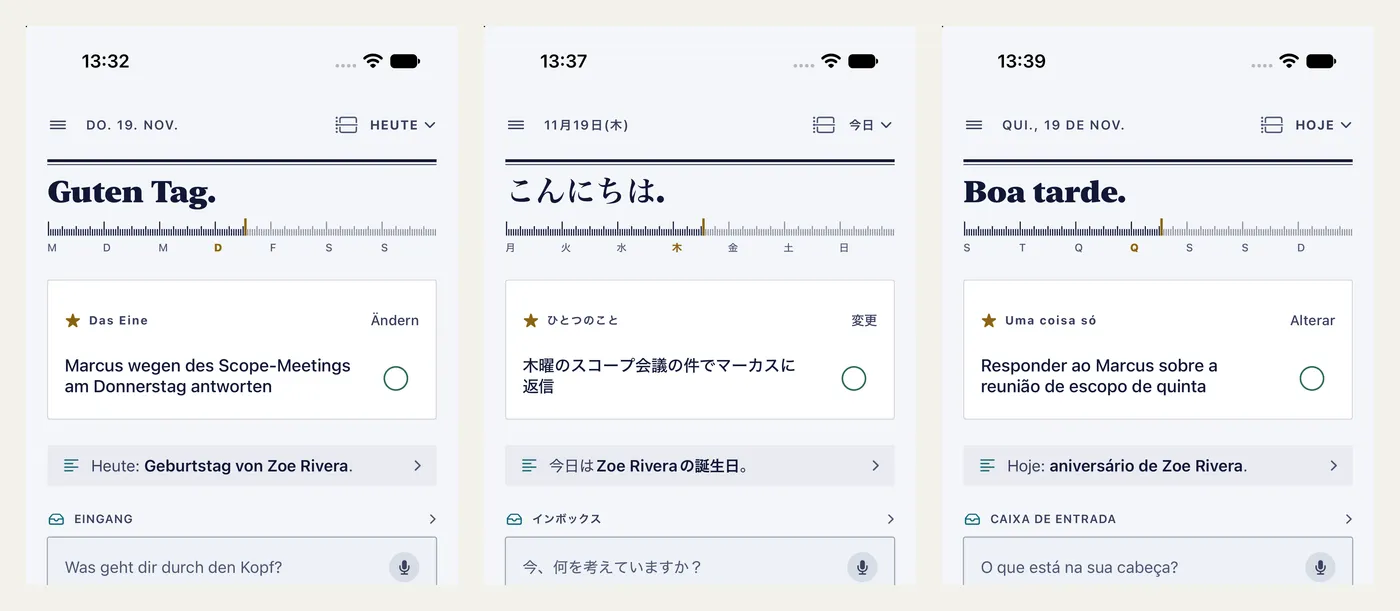
Your own words are not translated. A habit you named in English stays in English. The starter names HourLife writes for you, such as activity types, journal templates and mood triggers, are written in your language when they are first created, and from then on they are yours to rename. When Apple Intelligence answers a question about your records or writes a reflection, it answers in the language the app is showing.
HourLife follows your iPhone’s language. To run it in a different language from the rest of your phone, go to Settings ▸ Apps ▸ HourLife ▸ Language. The row appears once your iPhone lists more than one preferred language. On the Mac, the setting is in System Settings ▸ General ▸ Language & Region, under Applications.
The HourLife page on this site reads in Spanish, French, Japanese and Portuguese too: Español, Français, 日本語 and Português. If a word reads wrong in your language, tell us.
The timer leaves the app
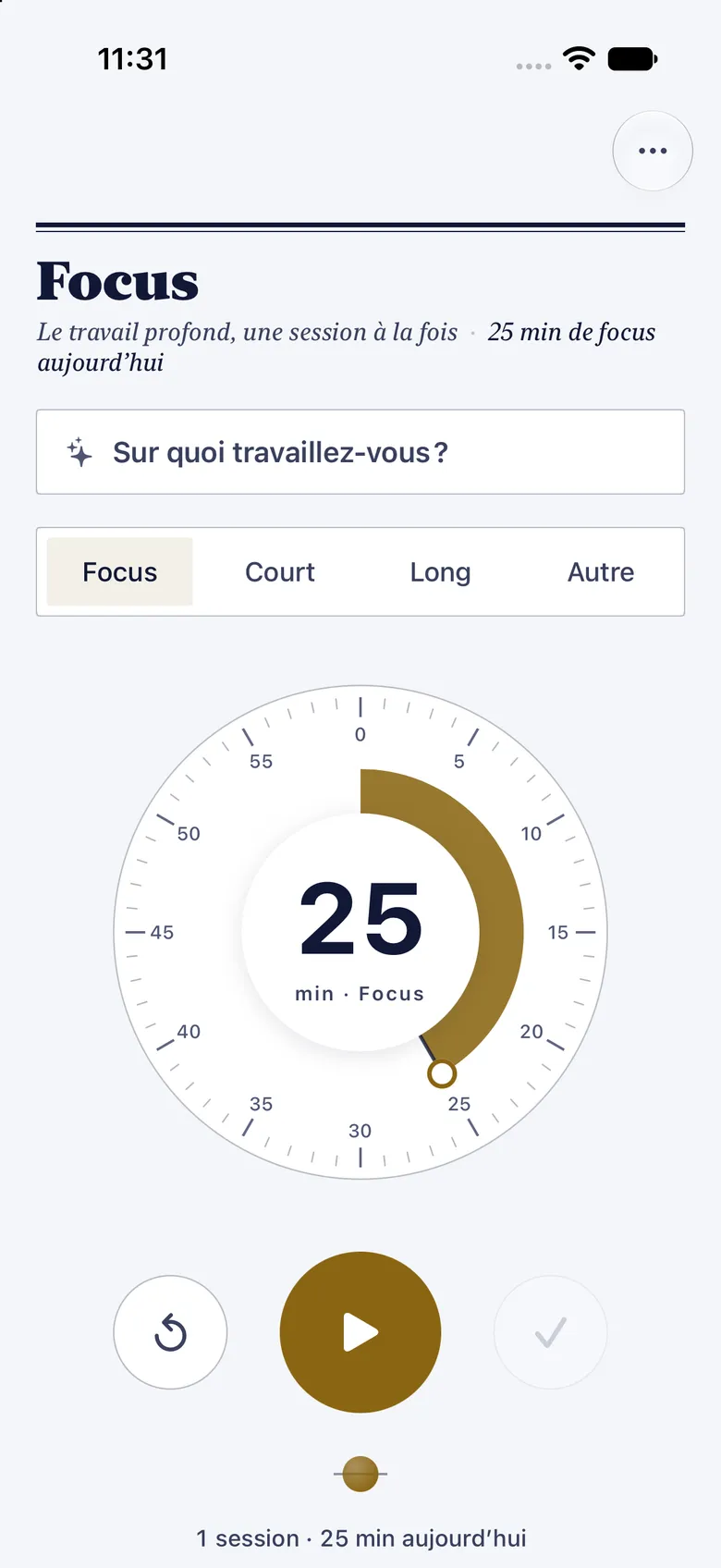
Start a focus session, lock your phone, and until now the session disappeared from view. In 1.8 it stays on the Lock Screen and in the Dynamic Island, counting down, with a button to pause and one to finish. Hours timers, the ones that log where your hours go, do the same. Up to three show at once: a focus session first, then your most recent Hours timers.
Pause or finish from the Lock Screen and any ambient sound stops with it. If a session runs out while the phone is in your pocket, it is recorded the next time you open HourLife.
Bring your past with you
The hardest part of changing apps is the years you leave behind in the old one. HourLife 1.8 can bring some of them across.
Settings ▸ Import from Reminders reads your Apple Reminders. Choose the lists you want, see how many reminders will come over, and import. Due dates and times come with them, and any notes or links go into the task’s notes.
The import shows you what it is about to add before it adds anything, and running it twice adds nothing new.
Into HourLife from anywhere
Reading something worth keeping in Safari? Tap Share ▸ HourLife. The title and link are filled in. Choose where it goes (Inbox, Media, Learning or Wisdom), add a note, and save. The share sheet never opens your records itself; it leaves the item waiting, and HourLife files it the next time it opens.
Spotlight now finds your open tasks, active goals and projects, and the people in HourLife. Tap a result and HourLife opens that item; Siri and Shortcuts can open them too. Care to-dos and modules you have switched off are never indexed, and Settings ▸ Show in Spotlight turns the whole thing off.
Done on a task or habit reminder now completes it without opening the app.
Closing the day, from wherever you are
Close Day is the short evening look back that ends a day in HourLife. It is now easier to reach. Its reminder has two buttons, Close day and In 30 min. Siri has a Close Day action. And the Today brief widget on your Home Screen turns into a Close Day button the minute it comes due.
Moods in Apple Health, and moments in the journal
Turn on Mood Settings ▸ Save moods to Apple Health and HourLife writes your moods to Health as State of Mind. The mood you give when you close the day is saved as the day’s mood; any other check-in is saved as a feeling in the moment. The switch brings over the last 90 days, and later edits and deletions follow. Turning it off leaves what is already in Health alone. Moods you log on the Mac reach Health the next time HourLife opens on your iPhone.
In the journal, Write about a moment opens Apple’s Journaling Suggestions. Pick a walk, a dinner, a song you played on repeat, and its title, people, places, music, workouts and a reflection prompt drop into the entry, with up to ten of its photos. The suggestions are Apple’s, made on your iPhone; HourLife only receives the moment you choose.
The year on one board
Goals ▸ Year lays out the year as a row of months, one across the screen with the next peeking in from the side. Each month shows the milestones due in it as cards, and a count of the goals’ tasks due that month. To move a milestone, drag it onto another month or use Move to.
The year starts on your day, not necessarily on 1 January. Begin it on 17 November, and it runs to 16 November next year. A strip at the top holds your goals for the year, where you can write a new one and plan it month by month, and when the end of the year comes into view you can start planning the next one from the Starts chip. On the Mac, Goals switches between Altitude, Tree and Year.
Smaller things worth knowing
- Focus filters. In iPhone Settings, open Focus, choose a Focus, and add a HourLife filter. Today can then show only the life areas you pick, or hide tasks altogether while you sleep. A line at the top of Today says what is filtered, so nothing just disappears.
- “On days you…” In the weekly review, HourLife Premium looks back eight weeks and compares your energy on days you kept a habit, focused for ten minutes or more, saw someone, or slept seven hours, with the days you didn’t. It shows at most three differences, and only when there are at least three days on each side. They are observations, not scores.
- Where the 168 went. Hours ▸ … ▸ Share week makes a card of your week: your top six activities, everything else, the hours you didn’t log and the hours still ahead.
- Move to Apple Calendar. A one-off HourLife event can move to one of your Apple or Google calendars. The copy is saved there before the original is removed, and a shake undoes it.
- Personal records. Finishing a workout shows a summary with any new personal records.
- Fixes. A habit restored from the archive on a 1.7 device comes back to Today. Your weekly plan is found when your iPhone and Mac start the week on different days.
On the Mac
HourLife for Mac 1.8 has the same five languages, Siri and Shortcuts phrases included. Calendar can now show the calendars on your Mac beside your HourLife events: connect them in Settings ▸ Modules, under Calendar. An alarm-style alert on an Apple Calendar event is saved as a notification instead of being dropped. And Goals has the Year board.
A week has 168 hours in every language.
More from HourLife
HourLife 1.9: your day on your wrist
HourLife 1.9 comes to Apple Watch: today’s habits, routines and tasks on your wrist, with habit timers and quick capture. Subscriptions remind you before a renewal, a trial’s end or a cancel-by date, and Household gives everything you own an upkeep job.
HourLife
Release
v1.9
7 min read
HourLife 1.7: Calendar becomes a real calendar
HourLife 1.7 turns Calendar into a full calendar: events with alerts, alarms and repeats; Day, Week, Month, Year and List views; your Apple and Google calendars beside them; .ics import and export; and a Calendar widget.
HourLife
Release
v1.7
4 min read