Guide menu
Start here
Core
Productivity
Life Design
Reflection
Health & Body
Planning
Reference
The app
Getting started
Your first day with HourLife, from the welcome screen to your first weekly review.
HourLife runs on iPhone and Mac. There is no account to create: everything you write is stored on your device, and iCloud sync is there if you turn it on.
Setting up
The first launch takes three screens.
-
1
Welcome to HourLife
A reminder of the ground rule: everything is private and stored on your device.
-
2
What's your focus?
Pick a starting point. It decides which modules are switched on to begin with, and you can change all of it later.
-
3
You're all set
HourLife opens on Today. This screen also says what Premium adds, if you want to look.
The five starting points
- Build better days
- Habits, tasks, and focus — one great day at a time
- Chase big goals
- Set goals, run projects, and track what matters
- Learn & reflect
- Journal, capture ideas, and keep what matters
- Live intentionally
- Build your life around areas, habits, and awareness
- Full control
- Start with everything and customize from there
"Full control" turns on every free module. None of the starting points switches on a Premium module.
Finding your way around
Four ways to get to a module, from the most used to the least.
- The tab bar
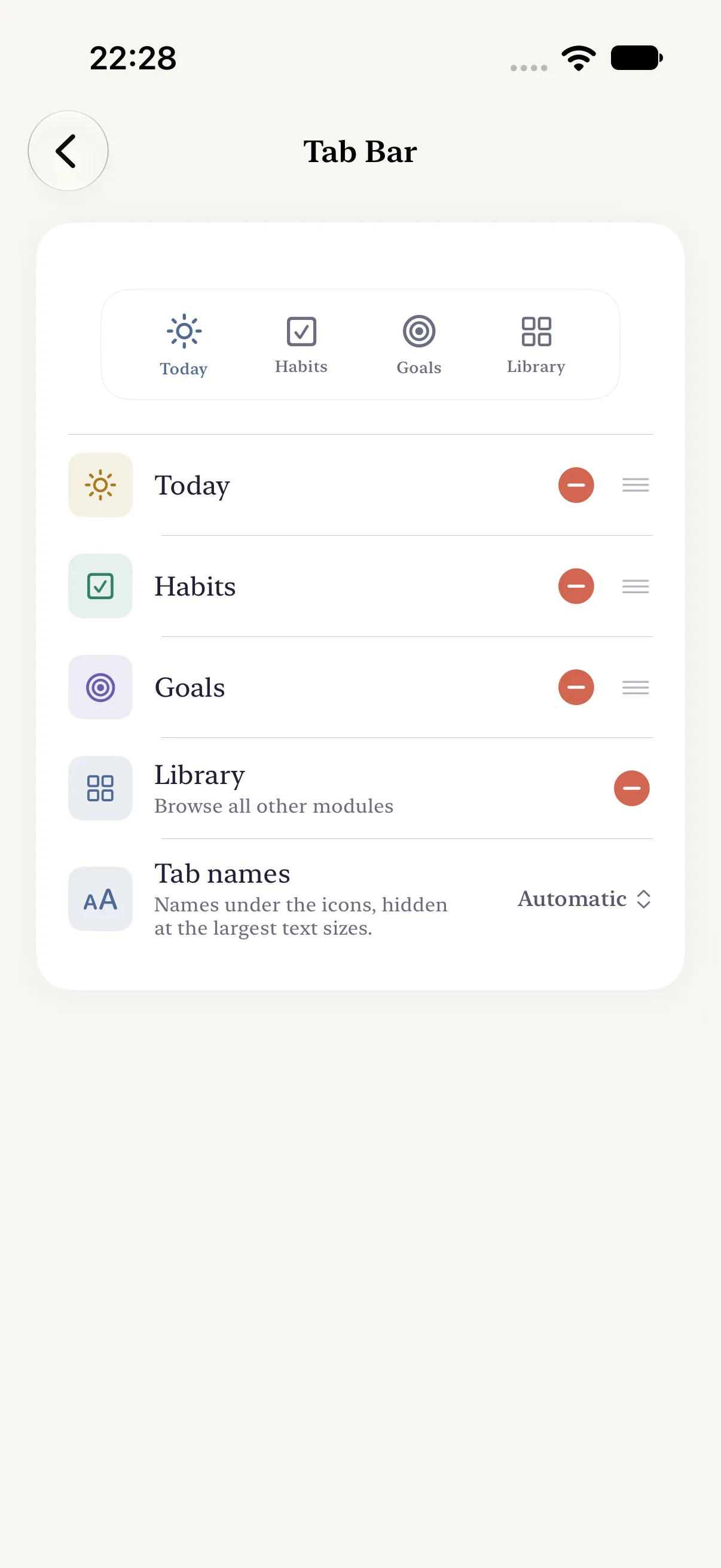
- It starts as Today, Habits, Goals and Library, with a + button at the end for quick add. You can keep up to four tabs: choose them in Settings → Look & Feel → Modules. "Tab names" (Automatic, Always, Never) decides whether the tabs carry labels; Automatic hides them at the largest text sizes.
- The Library
- Every module lives here, including Premium ones you have not unlocked, so you can see what exists. Layout, in the "…" menu, sets how it looks (Mosaic, Icon, List, Grid or Graph) and how modules are grouped (Workflow, Domain or None). Pin the modules you use most to keep them at the top, or search.
- The sidebar
- Swipe in from the left edge of the screen for a sidebar with your pinned modules, every section of the app, and search.
- The right edge
- Swiping in from the right edge can jump straight into one Today mode: Sprint, Capture, Deep Work or Rest. Pick which one, or turn it off, in Settings → Navigation.
- Search
- "Search your life…" looks across your records and keeps your recent searches. Its index stays on your device and never syncs.
Turning modules on
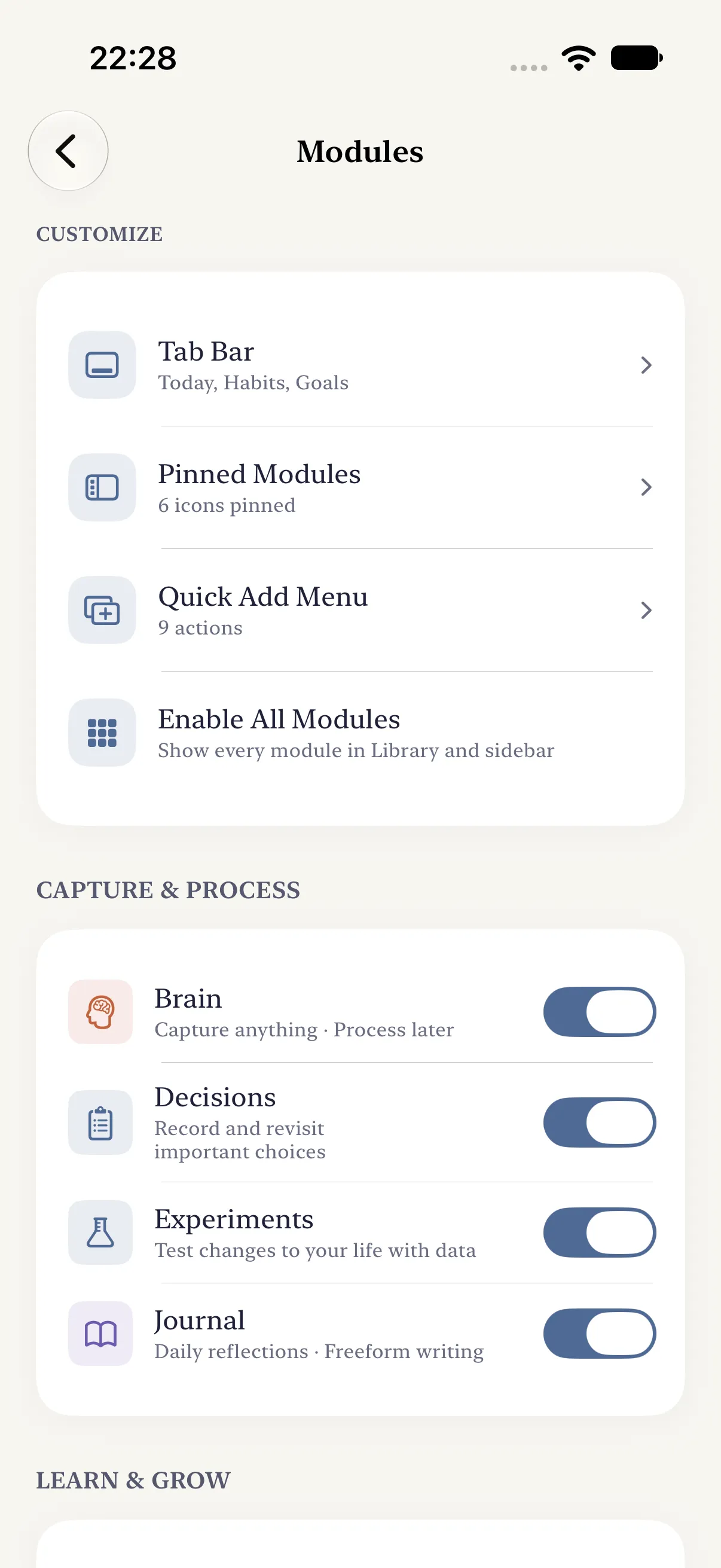
Your starting point switched some modules on. To change the set, open Settings → Look & Feel → Modules. The list is grouped the way the Library is, with a switch per module, and "Enable All Modules" at the top if you would rather see everything.
The same screen sets your tab bar, your pinned modules, and what the + quick-add menu offers.
Switching a module off only hides it. What you wrote in it stays, and is there again when you switch it back on.
Your first day
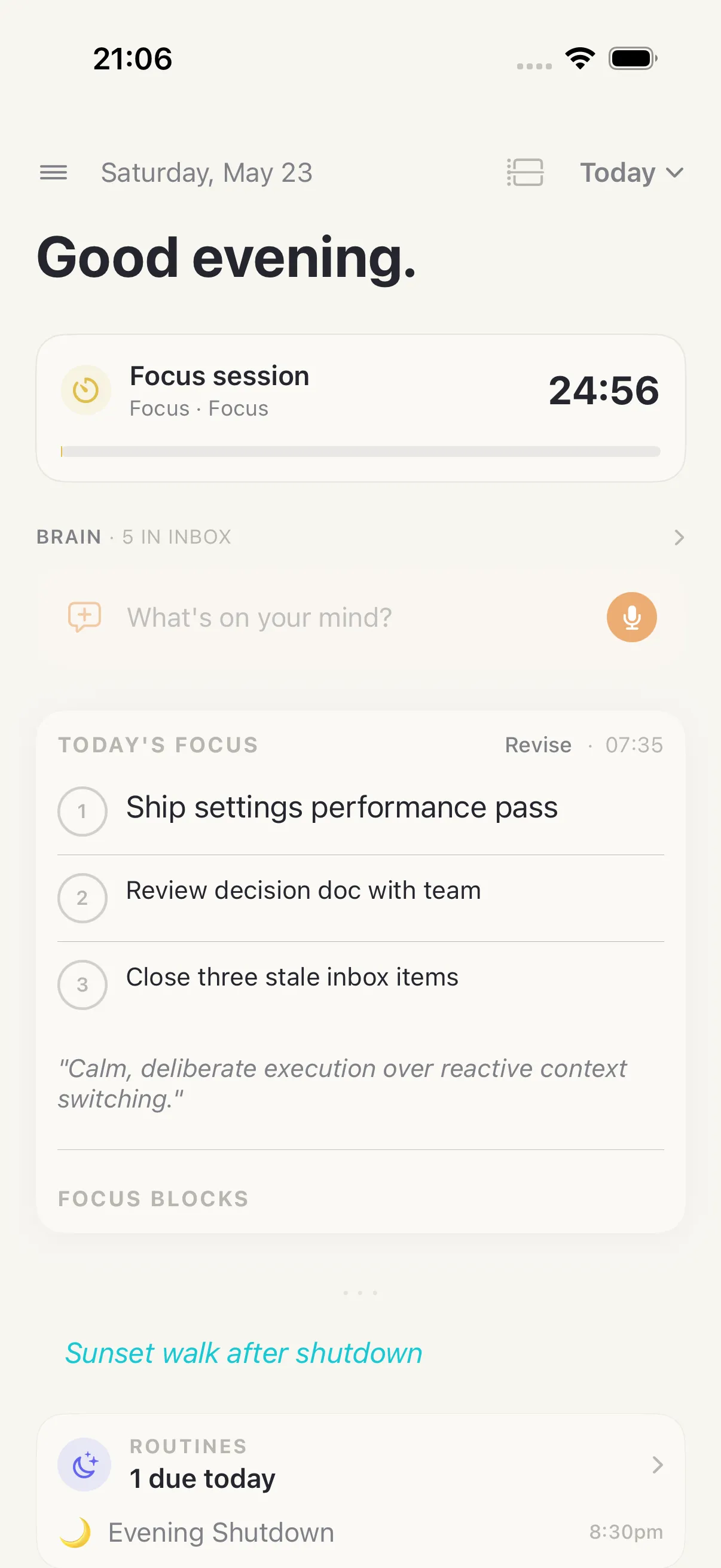
- Before 10:00 AM, Today offers "Start your day →". Say how you are arriving, log your energy, and write up to three priorities.
- Whenever a thought turns up, type it into "What's on your mind?" on Today. It goes to your Brain inbox and you stay where you were.
- When it is time to work, tap the mode name at the top of Today and pick Deep Work or Sprint. Deep Work runs one task on the Focus timer; Sprint lines up the tasks you can clear quickly.
- From 8:00 PM, close the day: what got done, tomorrow's priorities, and "What went well today?". Your answer to that is saved as a highlight.
Your first week
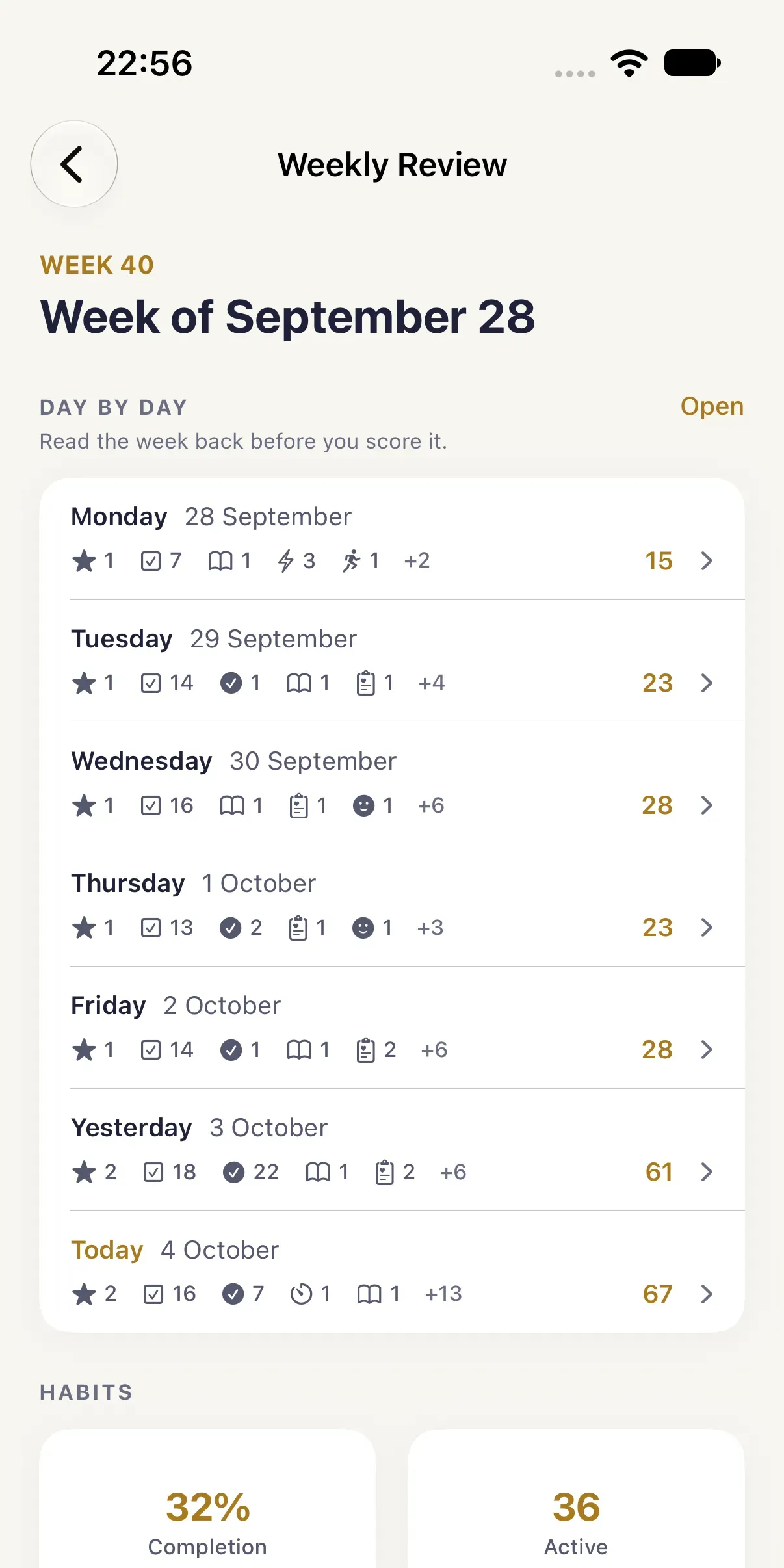
On Sunday, Today shows "Weekly review — ready when you are →". You can also open it from the Week page's "Review" chip.
The review walks through your priorities, a headline for the week, each day in turn (tap a day to open it), then habits, tasks, goals, your inbox, and how your energy and mood moved. It ends with the most important thing for next week and up to three must-dos, then "Finish Review".
Links that open HourLife
For Shortcuts, a home-screen bookmark, or a note to yourself. Each one opens the app at that place.
hourlife://today- Opens Today.
hourlife://brain- Opens a Brain capture.
hourlife://task- Opens a new task.
hourlife://journal/new- Opens a new journal entry.
hourlife://focus/start?minutes=25- Starts a 25-minute Focus session.
hourlife://intake/water- Logs 200 ml of water in Intake (a Premium module).
On the web, https://www.hourlife.com/app/today and the same paths open the app on an iPhone that has it, and the App Store on one that does not.
What would you like to know?
Ask a question about this feature or tell us what’s missing.
Keep this going in the app.
HourLife turns these ideas into a daily system — goals, habits, focus, and reflection in one private place.